Install on Claude Desktop & Claude.ai
Claude Desktop and Claude.ai share the same Connectors UI, so the steps below apply to both. Wherever the guide says Settings, use the Claude Desktop app menu or the Claude.ai web sidebar — the flow is identical.
Prerequisites
- The Claude app — Claude Desktop or Claude.ai in the browser — signed in.
- An AfterShip account with access to the organization you want to connect.
Install
From the Connectors directory
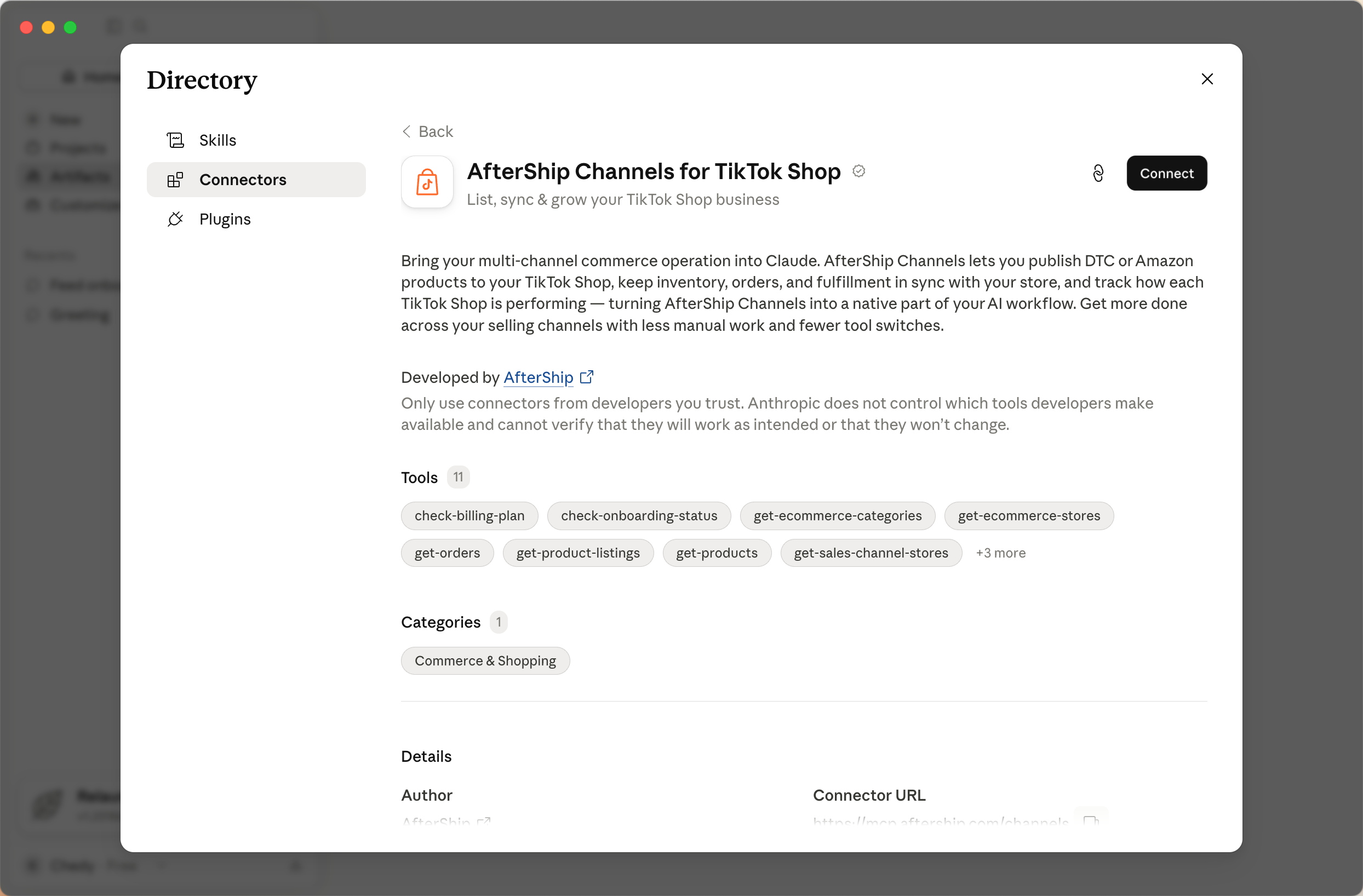
- Open Settings → Connectors.
- Search for AfterShip Channels.
- Click Connect on the result.
Sign in
Click Connect on the AfterShip Channels connector. A browser tab opens and starts the OAuth flow. Choose the AfterShip organization you want the agent to work with, then return to Claude — the token is stored automatically. No credentials need to be written into any config file.
Verify
Start a new conversation and ask:
Check my AfterShip onboarding status.
Claude should invoke the AfterShip Channels MCP and return a summary.
If nothing happens, reopen Settings → Connectors and confirm
AfterShip Channels shows as connected.
Troubleshooting
- No "Add custom connector" option. Update Claude Desktop to the latest version, then reopen Settings.
- OAuth window did not open. Check that your browser is not blocking pop-ups from Claude Desktop, then click Connect again.
- Wrong organization data. In Settings → Connectors, remove the AfterShip Channels connector, add it again, and re-run the OAuth flow — this time picking the correct organization.